Your WordPress website might look perfect on the outside, but what happens when someone tries to guess your admin password, exploit an outdated plugin, or inject malicious code?
For bloggers, business owners, agencies, and WooCommerce stores, website security isn’t something to think about only after a problem occurs.
A compromised website can lead to lost content, unauthorized transactions, exposed customer information, downtime, and damage to your reputation.
Fortunately, WordPress offers several security plugins that can help reduce these risks.
Some provide firewalls and malware scanning. Others focus on login protection, vulnerability detection, two-factor authentication, or incident recovery.
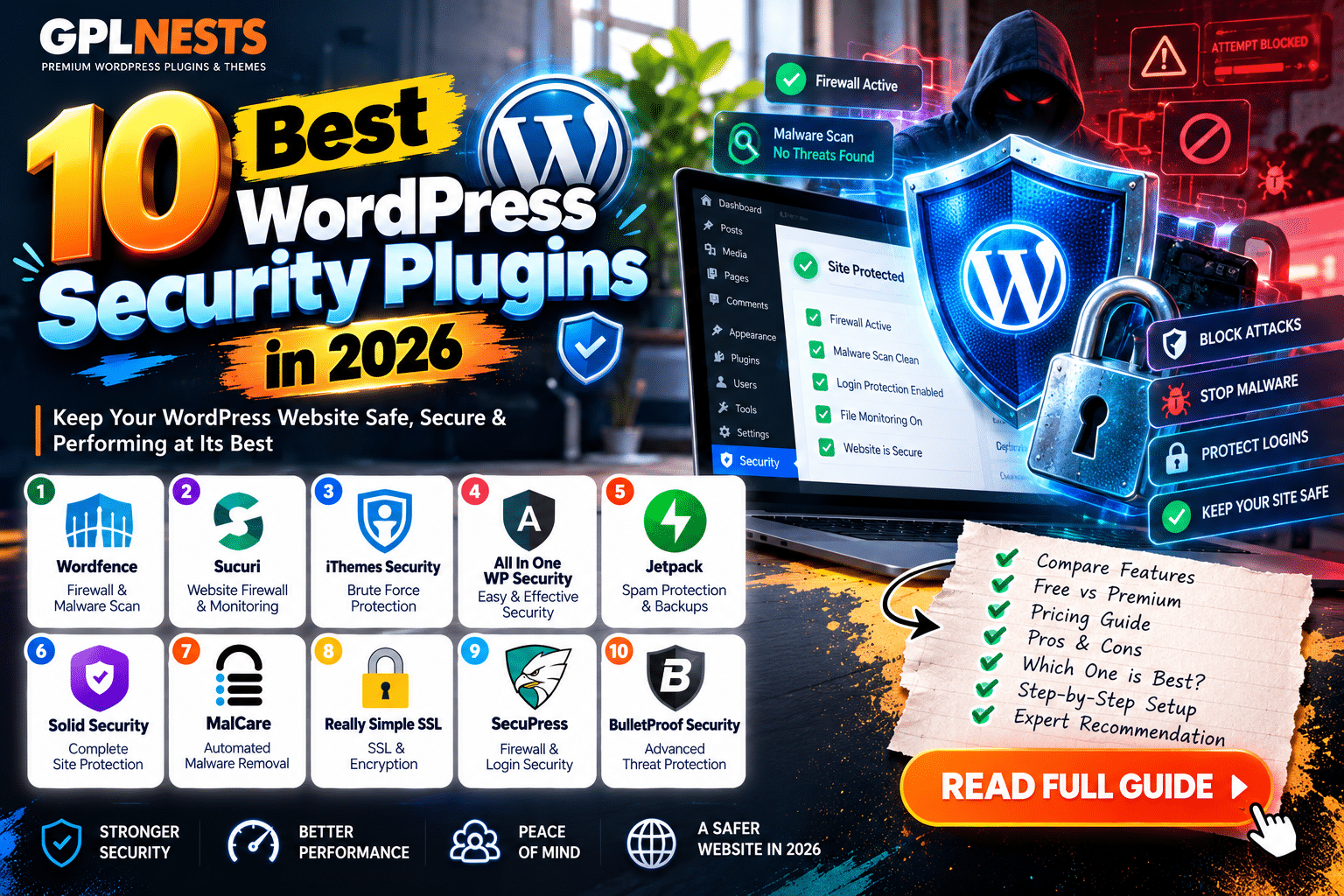
In this guide, we’ll compare the 10 best WordPress security plugins in 2026, including free and premium options, to help you choose the right protection for your website.
Quick Comparison: Best WordPress Security Plugins in 2026
| Security Plugin | Best For | Free Version | Editorial Rating |
|---|---|---|---|
| Wordfence Security | Best overall | Yes | 4.8/5 |
| Sucuri Security | Website monitoring and cloud firewall | Yes | 4.7/5 |
| Solid Security | Login and account protection | Yes | 4.6/5 |
| MalCare | Malware scanning and cleanup | Yes | 4.7/5 |
| All-In-One Security (AIOS) | Free security hardening | Yes | 4.6/5 |
| Defender Security | Beginner-friendly protection | Yes | 4.6/5 |
| Patchstack | Vulnerability monitoring | Yes | 4.8/5 |
| Limit Login Attempts Reloaded | Brute-force protection | Yes | 4.5/5 |
| WP 2FA | Two-factor authentication | Yes | 4.7/5 |
| NinjaFirewall | Advanced firewall protection | Yes | 4.6/5 |
Ratings are editorial assessments of features, suitability, usability, and overall value. They are not independent penetration-test results or verified malware detection benchmarks.
1. Wordfence Security – Best Overall WordPress Security Plugin
Editorial Rating: 4.8/5
Wordfence is one of the most established WordPress security plugins, combining a firewall, malware scanner, login protection, and vulnerability monitoring.
Its broad feature set makes it suitable for beginners and experienced website administrators.
Key Features
- Endpoint web application firewall
- Malware scanning
- Brute-force attack protection
- Two-factor authentication
- Login security
- Vulnerability alerts
- Rate limiting
- Centralized website management
Free vs Premium
Wordfence Free includes an endpoint firewall and malware scanner.
However, free users receive new firewall rules and malware signatures after a 30-day delay.
Wordfence Premium provides real-time firewall rule and malware signature updates, along with additional protection capabilities.
Pros
- Comprehensive security toolkit
- Strong free version
- Firewall and malware scanning
- Two-factor authentication
- Vulnerability monitoring
- Centralized management options
Cons
- Free threat intelligence is delayed
- Scanning can consume server resources
- Configuration may feel complicated initially
- Premium features require payment
Who Should Use Wordfence?
Wordfence is a strong choice for WordPress blogs, business websites, and WooCommerce stores that want a broad security solution.
Verdict: Our best overall pick for users who want firewall protection, scanning, and login security in one established plugin.
2. Sucuri Security – Best for Website Monitoring and Cloud Firewall
Editorial Rating: 4.7/5
Sucuri provides website security monitoring and a broader premium security platform.
Its free WordPress plugin focuses on visibility, auditing, and hardening, while premium services add stronger preventive and recovery capabilities.
Key Features
- Security activity auditing
- File integrity monitoring
- Remote malware scanning
- Blocklist monitoring
- Security hardening
- Post-hack security actions
- Premium website firewall
- Premium DDoS mitigation
Free vs Premium
The free Sucuri Security plugin includes auditing, file integrity monitoring, remote scanning, and hardening features.
Its premium firewall and broader website security services are separate paid offerings.
Importantly, remote website scanning does not necessarily detect malware hidden in every server-side file.
Pros
- Useful security monitoring
- File integrity checks
- Website auditing
- Premium cloud firewall
- Blocklist monitoring
- Incident response functionality
Cons
- Free plugin doesn’t include the premium firewall
- Remote scanning has visibility limitations
- Advanced protection requires a paid service
- Setup may involve external services
Who Should Use Sucuri?
Sucuri is particularly useful for businesses that want website monitoring combined with an optional cloud-based security layer.
Verdict: A strong choice for website owners who value security auditing and are considering managed firewall services.
3. Solid Security – Best for WordPress Login Protection
Editorial Rating: 4.6/5
Solid Security, previously known as iThemes Security, focuses on protecting WordPress accounts and improving site security practices.
Its approach emphasizes reducing common security weaknesses, especially those involving authentication and user accounts.
Key Features
Depending on the edition and configuration, Solid Security offers:
- Login security controls
- Two-factor authentication
- Brute-force protection
- Password security tools
- Security monitoring
- User account protection
- Vulnerability-related features
- Security hardening settings
Free vs Premium
The free edition provides foundational security functionality.
Premium editions expand account protection, management, and other security capabilities.
Check the current plan comparison before purchasing for a particular feature.
Pros
- Strong focus on login security
- Helpful account protection
- Free starting option
- Security hardening tools
- Suitable for business websites
Cons
- Some features require premium
- Not primarily a full malware cleanup service
- Advanced settings need careful configuration
- Some protections overlap with other security plugins
Who Should Use Solid Security?
Website owners who want to strengthen WordPress login security and user account management.
Verdict: A practical choice for WordPress administrators who prioritize authentication and security hardening.
4. MalCare – Best for Malware Scanning and Cleanup
Editorial Rating: 4.7/5
MalCare is a WordPress security service focused on malware detection, protection, and cleanup.
One of its notable features is off-server malware scanning, which aims to reduce the scanning workload on your own hosting environment.
Key Features
- Off-server malware scanning
- Website firewall
- Vulnerability monitoring
- Login protection
- Scheduled security scans
- Malware cleanup on eligible paid plans
- Security dashboard
Free vs Premium
MalCare offers a free entry plan with limited scan frequency and basic protection.
Its paid plans increase scan frequency and add additional capabilities.
Important: Automated malware cleanup is not included in every paid MalCare plan. Check the current Repair or Fortify plan features if cleanup is your main requirement.
Pros
- Off-server scanning approach
- Malware-focused functionality
- Firewall protection
- Vulnerability monitoring
- Useful for business websites
- Paid cleanup options
Cons
- Free plan has limitations
- Malware cleanup requires an eligible plan
- External service dependency
- Advanced protection costs more
Who Should Use MalCare?
MalCare is worth considering for businesses that want dedicated malware scanning and access to professional cleanup capabilities.
Verdict: A strong option for malware-focused security, especially when cleanup and incident response are priorities.
5. All-In-One Security (AIOS) – Best Free WordPress Security Hardening Plugin
Editorial Rating: 4.6/5
All-In-One Security, commonly called AIOS, provides a collection of WordPress security and hardening tools.
It’s designed to make common security improvements more accessible.
Key Features
- Login security
- Brute-force protection
- Firewall rules
- Security hardening
- Two-factor authentication
- File and database-related security controls
- Security activity monitoring
- Additional premium features
Free vs Premium
AIOS offers a substantial free feature set.
Premium functionality provides additional security capabilities and management options.
Pros
- Broad free functionality
- Login protection
- Security hardening
- Firewall features
- Useful administration controls
- Suitable for smaller websites
Cons
- Numerous settings can be confusing
- Some hardening changes may affect site functionality
- Firewall capabilities differ from cloud-based services
- Advanced protection may require premium
Who Should Use AIOS?
Bloggers, small businesses, and WordPress users looking for a broad free security toolkit.
Verdict: A good starting point for website owners who want more security controls without immediately buying a premium plan.
6. Defender Security – Best for Beginners
Editorial Rating: 4.6/5
Defender Security by WPMU DEV combines security scanning, firewall functionality, login protection, and hardening tools.
Its appeal is a relatively approachable workflow for users who don’t want to manage every security detail manually.
Key Features
- Malware scanning
- Firewall protection
- Brute-force protection
- Two-factor authentication
- Login attempt limits
- Security hardening
- Vulnerability checks
- Security reporting
Free vs Premium
The free plugin provides essential security tools.
Defender Pro adds advanced protection, automation, reporting, and management functionality.
Pros
- Beginner-friendly approach
- Free version available
- Multiple security tools
- Malware scanning
- Login protection
- Security recommendations
Cons
- Some advanced features require Pro
- Security settings can conflict with other tools
- Full protection still requires regular maintenance
- Not a substitute for backups
Who Should Use Defender?
Defender is suitable for WordPress users who want several security features in one plugin without building a complicated custom security setup.
Verdict: A good all-round choice for beginners and small businesses.
7. Patchstack – Best for WordPress Vulnerability Protection
Editorial Rating: 4.8/5
Patchstack takes a different approach from traditional security plugins.
Instead of focusing mainly on malware detection after an infection, it specializes in identifying vulnerabilities in WordPress core, plugins, and themes.
This is especially relevant for websites using many third-party extensions.
Key Features
- WordPress vulnerability monitoring
- Plugin vulnerability alerts
- Theme vulnerability alerts
- WordPress core vulnerability alerts
- Centralized security dashboard
- Vulnerable software update management
- Virtual patching on eligible paid plans
- Security reporting
What Is Virtual Patching?
Virtual patching uses protective rules to block known exploit attempts without directly changing the vulnerable plugin’s code.
This can provide temporary protection while waiting for a software update.
However, virtual patching is not a permanent replacement for fixing or removing vulnerable software.
Free vs Premium
Patchstack’s free Personal plan provides vulnerability detection and alerts.
Paid protection options add virtual patching and additional security features.
Pros
- Specialized vulnerability intelligence
- Free vulnerability monitoring
- Useful plugin and theme alerts
- Virtual patching options
- Strong agency use cases
- Helpful for plugin-heavy websites
Cons
- Free plan doesn’t include full virtual patching
- Not primarily a malware cleanup tool
- External dashboard integration
- Advanced protection requires payment
Who Should Use Patchstack?
Agencies, developers, WooCommerce stores, and websites that depend on many WordPress plugins.
Verdict: One of the most valuable specialist tools for identifying and responding to WordPress extension vulnerabilities.
8. Limit Login Attempts Reloaded – Best for Brute-Force Protection
Editorial Rating: 4.5/5
Limit Login Attempts Reloaded focuses on protecting login endpoints from repeated unauthorized attempts.
Automated password guessing remains a common problem for websites with publicly accessible login pages.
Key Features
- Login attempt restrictions
- Temporary lockouts
- Brute-force attack protection
- Login monitoring
- Additional protection services in supported plans
- Security reporting features
Why Is It Useful?
Imagine an automated bot attempting hundreds of password combinations against your WordPress login page.
Limiting repeated failed login attempts can make this type of attack less effective.
However, rate limiting does not replace strong passwords or two-factor authentication.
Pros
- Free version available
- Focused security purpose
- Straightforward configuration
- Useful for login protection
- Suitable for small websites
Cons
- Not a complete security suite
- Doesn’t replace malware scanning
- Incorrect settings can lock out legitimate users
- May overlap with an existing firewall or login security tool
Who Should Use It?
Users who need dedicated login attempt protection without installing a large security suite.
Verdict: A practical lightweight option for improving login security.
9. WP 2FA – Best for Two-Factor Authentication
Editorial Rating: 4.7/5
WP 2FA by Melapress is a dedicated two-factor authentication plugin for WordPress.
Two-factor authentication adds another verification step beyond a password.
Even if someone discovers a user’s password, they may still be unable to sign in without the additional authentication factor.
Key Features
- Authenticator app support
- Email-based verification
- Two-factor authentication policies
- User role-based enforcement
- Backup codes
- Setup wizard
- Passkey support
- Additional premium authentication methods
- Premium WooCommerce integration
Free vs Premium
The free version supports core two-factor authentication workflows and enforcement policies.
Premium functionality includes additional authentication methods, trusted devices, hardware key options, and more advanced integrations.
Pros
- Dedicated authentication security
- Free version available
- Role-based policies
- Backup codes
- Setup wizard
- Useful for multi-user websites
Cons
- Not a malware scanner
- Not a general-purpose firewall
- Users may need onboarding assistance
- Account recovery procedures are important
Who Should Use WP 2FA?
Membership websites, agencies, online stores, and WordPress sites with multiple administrators or editors.
Verdict: A strong choice when enforcing two-factor authentication is your primary goal.
10. NinjaFirewall – Best for Advanced Firewall Protection
Editorial Rating: 4.6/5
NinjaFirewall is a WordPress-focused web application firewall.
It is designed to inspect and filter incoming requests, including requests that may attempt to exploit vulnerable code.
Key Features
- Web application firewall
- HTTP request filtering
- Brute-force attack protection
- Security rules
- Request inspection
- Advanced filtering controls
- Additional premium features
Why Choose NinjaFirewall?
Some WordPress users prefer a dedicated firewall rather than a broad security suite.
NinjaFirewall can be attractive when advanced request filtering is the main requirement.
Pros
- Specialized firewall functionality
- Free edition available
- Advanced request filtering
- Brute-force protection
- Suitable for technical users
Cons
- More technical than beginner-focused plugins
- Incorrect rules can block legitimate requests
- Doesn’t replace every security tool
- Advanced features may require premium
Who Should Use NinjaFirewall?
Developers, advanced administrators, and website owners who want detailed firewall controls.
Verdict: A useful specialist choice for advanced WordPress firewall protection.
Which WordPress Security Plugin Is Best?
Different websites need different security solutions.
| Your Requirement | Recommended Plugin |
|---|---|
| Best all-round security | Wordfence |
| Cloud firewall and monitoring | Sucuri |
| Login and account hardening | Solid Security |
| Malware scanning and cleanup | MalCare |
| Broad free hardening tools | AIOS |
| Beginner-friendly security | Defender |
| Plugin vulnerability alerts | Patchstack |
| Login attempt limiting | Limit Login Attempts Reloaded |
| Two-factor authentication | WP 2FA |
| Advanced firewall configuration | NinjaFirewall |
For most websites, start with one primary security solution.
Add specialized tools only if your main plugin doesn’t already cover the requirement.
Best Free WordPress Security Plugins in 2026
You don’t necessarily need a premium subscription to improve WordPress security.
Several free plugins provide meaningful protection.
Best Overall Free Option: Wordfence
Its free firewall, scanner, and login security tools provide broad functionality.
Best for Free Security Hardening: AIOS
AIOS offers a wide collection of security controls.
Best for Vulnerability Alerts: Patchstack
Patchstack helps identify vulnerable WordPress plugins, themes, and core versions.
Best for Two-Factor Authentication: WP 2FA
WP 2FA is particularly useful for protecting administrator and editor accounts.
Best for Login Attempt Protection: Limit Login Attempts Reloaded
A focused solution for restricting repeated login attempts.
Remember that free security tools may have limitations involving threat intelligence timing, scanning, firewall rules, or incident cleanup.
Free vs Premium WordPress Security Plugins
| Feature | Free Security Plugins | Premium Security Services |
|---|---|---|
| Basic login protection | Often included | Usually included |
| Two-factor authentication | Available in many plugins | Additional methods or policies |
| Malware scanning | Often available | More frequent or advanced scanning |
| Firewall | Varies by plugin | More advanced or current rules |
| Vulnerability alerts | Available | Advanced protection and automation |
| Malware cleanup | Usually limited or absent | Available on selected plans |
| Priority support | Usually not included | Often included |
| Managed security | Rare | Available from selected providers |
A premium plan is most valuable when it solves a specific risk or provides a service you cannot reasonably manage yourself.
Best WordPress Security Plugins for WooCommerce
WooCommerce stores need special attention because they may process customer information, payments, and orders.
Security should cover more than the WordPress administrator login.
Important areas include:
- Customer account protection
- Checkout security
- Payment gateway integrity
- Vulnerable plugin detection
- Secure API integrations
- Administrative permissions
- Reliable backups
- Incident response procedures
Recommended Approach
For a typical WooCommerce store, consider:
Primary Security: Wordfence or another suitable security suite.
Vulnerability Monitoring: Patchstack, if additional specialized monitoring is needed.
Authentication: Enforce two-factor authentication for administrators and other privileged users.
Backups: Use a reliable backup system with offsite storage.
Avoid enabling multiple overlapping firewalls or login lockout systems without testing them.
WooCommerce Compatibility Matters
After changing security settings, test:
- Customer registration
- Customer login
- Password reset
- Cart
- Checkout
- Payment processing
- Order confirmation
- Webhooks
- REST API integrations
An overly aggressive firewall rule can block legitimate customer actions.
Best WordPress Security Plugins for Elementor Websites
Elementor websites can use many third-party widgets, addons, and templates.
Each additional extension introduces another component that needs maintenance.
A practical Elementor security strategy includes:
- Keeping Elementor updated
- Keeping Elementor Pro updated
- Updating third-party addons
- Removing unused addons
- Monitoring plugin vulnerabilities
- Protecting administrator accounts
- Testing changes on staging
Patchstack can be particularly useful for monitoring vulnerabilities across a larger plugin collection.
Wordfence or another suitable security suite can provide broader website protection.
Security plugins should not be used as an excuse to keep abandoned or vulnerable extensions installed.
Can Security Plugins Slow Down WordPress?
Yes, depending on how they operate.
Potential sources of overhead include:
- Frequent malware scans
- Large security logs
- Repeated database queries
- Firewall processing
- Excessive notifications
- Multiple overlapping security plugins
Some security services move parts of their workload off the hosting server.
However, actual performance depends on the plugin, hosting environment, and configuration.
How to Reduce Performance Problems
- Use one primary security suite.
- Avoid overlapping firewall configurations.
- Schedule intensive scans appropriately.
- Review security log retention.
- Remove unused plugins.
- Monitor server resources.
- Test performance before and after changes.
A security plugin should reduce risk without unnecessarily disrupting your website.
12 Essential WordPress Security Practices for 2026
Even the best security plugin cannot replace good website maintenance.
1. Keep WordPress Updated
Install supported security updates promptly.
2. Update Plugins and Themes
Outdated extensions may contain publicly known vulnerabilities.
3. Remove Unused Plugins
Deactivate and delete plugins that are no longer needed.
4. Use Strong Passwords
Use unique passwords generated by a trusted password manager.
5. Enable Two-Factor Authentication
Protect administrator and other privileged accounts with an additional authentication factor.
6. Choose Secure Hosting
Look for maintained PHP versions, server security controls, backups, and responsive support.
7. Use HTTPS
Configure a valid TLS certificate and ensure your website uses HTTPS correctly.
8. Create Offsite Backups
Keep recoverable backups outside your primary hosting account.
9. Limit Administrator Access
Give users only the permissions they need.
10. Monitor Vulnerabilities
Check installed software for known security issues.
11. Review Website Activity
Investigate unexpected administrator accounts, file changes, and unusual login behavior.
12. Test Recovery Procedures
A backup is useful only if it can be restored successfully.
How to Install a WordPress Security Plugin
For plugins available through the WordPress directory:
Step 1: Log in to your WordPress dashboard.
Step 2: Navigate to Plugins → Add New Plugin.
Step 3: Search for your selected security plugin.
Step 4: Confirm the plugin name and developer.
Step 5: Install and activate it.
Step 6: Complete the initial configuration wizard.
Step 7: Enable appropriate security features.
Step 8: Run an initial scan or security audit.
Step 9: Test website functionality.
Step 10: Review alerts and update settings regularly.
Before changing firewall rules, login URLs, or authentication policies, make sure you have a working backup and a recovery method.
Common WordPress Security Mistakes
Installing Multiple Full Security Suites
Running several overlapping security plugins can cause duplicate controls, lockouts, or confusing alerts.
Ignoring Plugin Updates
A firewall doesn’t eliminate the need to patch vulnerable software.
Using Weak Administrator Passwords
Simple or reused passwords make account compromise easier.
Forgetting Backups
Security prevention and disaster recovery are different responsibilities.
Blocking Legitimate Website Traffic
Aggressive rules may interfere with checkout, forms, APIs, or search engine crawlers.
Ignoring Security Alerts
Alerts are only useful when someone reviews and responds to them.
Trusting Unknown Plugin Sources
WordPress plugins should come from sources you trust, and files should be checked for integrity and malicious modifications.
A plugin distributed under the GPL is not automatically safe simply because its license permits redistribution.
What to Do If Your WordPress Website Gets Hacked
If you suspect a compromise, act carefully.
Step 1: Preserve Evidence
Record suspicious behavior, alerts, and relevant logs.
Step 2: Secure Access
Change compromised credentials and review administrator accounts.
Step 3: Contact Your Hosting Provider
Ask about malware detection, server logs, and available recovery options.
Step 4: Identify the Entry Point
Investigate vulnerable plugins, stolen credentials, and unauthorized file changes.
Step 5: Clean or Restore the Website
Use a verified clean backup or qualified malware cleanup service.
Step 6: Update Vulnerable Software
Patch the original weakness before returning the website to normal operation.
Step 7: Rotate Credentials and Secrets
Review passwords, API keys, and other affected credentials.
Step 8: Monitor the Website
Watch for recurring malicious behavior and unexpected changes.
For business-critical websites, professional incident response may be appropriate.
Final Verdict: Which WordPress Security Plugin Should You Choose?
The best WordPress security plugin depends on the threats you’re trying to reduce.
Wordfence is our best overall choice for a broad firewall, malware scanner, and login protection toolkit.
Sucuri is a strong option for monitoring and cloud firewall services.
Solid Security is useful for account protection and hardening.
MalCare is particularly relevant for malware detection and cleanup workflows.
AIOS and Defender offer accessible security functionality for smaller websites.
Patchstack stands out for vulnerability monitoring and virtual patching.
Limit Login Attempts Reloaded and WP 2FA are excellent focused tools for authentication security.
And NinjaFirewall is worth considering for advanced firewall configuration.
For most WordPress websites, the strongest strategy is to combine a suitable primary security solution with reliable updates, strong authentication, vulnerability monitoring, and tested backups.
Remember: no security plugin can guarantee complete protection. Good WordPress security is an ongoing process.
Frequently Asked Questions
What is the best WordPress security plugin in 2026?
Wordfence is a strong overall choice because it combines a firewall, malware scanning, login protection, and vulnerability monitoring. Other plugins may be better for specialized requirements.
Is Wordfence free?
Yes. Wordfence has a free version with a firewall, malware scanner, and login security. New firewall rules and malware signatures are delayed compared with premium plans.
Which WordPress security plugin is best for malware removal?
MalCare and Sucuri offer malware-related security services. Cleanup availability depends on the selected service or subscription.
Can I use Wordfence and Sucuri together?
Certain configurations may be compatible, but overlapping firewalls, login restrictions, and other controls should be reviewed carefully. Avoid unnecessary duplication.
Is WordPress secure without a security plugin?
WordPress core includes security measures, but security also depends on hosting, updates, permissions, passwords, extensions, and monitoring. A security plugin can provide additional protection.
What is the best free WordPress security plugin?
Wordfence and AIOS are strong general-purpose free options. WP 2FA is useful for authentication, while Patchstack focuses on vulnerability monitoring.
Do security plugins protect WooCommerce?
They can help protect WooCommerce websites, but you must also secure payment integrations, customer accounts, administrator access, and the hosting environment.
Can WordPress security plugins slow down a website?
Yes. Scanning, logging, firewall processing, and overlapping plugins may consume resources. Performance varies by configuration.
Is two-factor authentication necessary for WordPress?
It’s strongly recommended for administrator and other privileged accounts because it adds protection beyond passwords.
How often should I scan my WordPress website?
The appropriate frequency depends on your website’s risk, activity, and available tools. High-value sites generally benefit from frequent monitoring and prompt vulnerability alerts.
Can a security plugin prevent every cyberattack?
No. Security plugins reduce certain risks but cannot guarantee complete protection against every vulnerability, stolen credential, or configuration mistake.
Which security plugin is best for websites with many plugins?
Patchstack is particularly useful for monitoring vulnerabilities in installed plugins and themes. It can complement a broader security strategy.