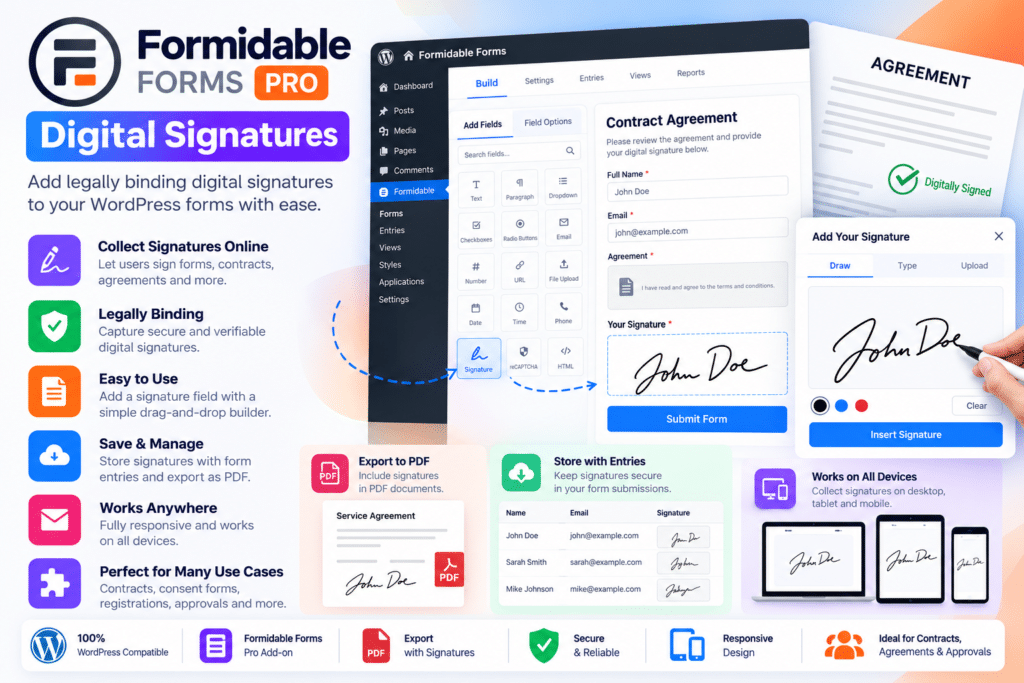
Formidable Forms Digital Signatures is a premium add-on that lets you collect electronic signatures directly through WordPress forms created with Formidable Forms.
Users can draw their signature using a mouse, trackpad, touchscreen, or compatible input device, or simply type their signature when that option is enabled.
This makes the add-on useful for consent forms, acknowledgements, applications, waivers, approvals, client onboarding, internal forms, and other workflows where you want a signature captured alongside submitted form information.
Key Features
- Electronic Signature Field – Add signature capture directly to supported Formidable Forms.
- Draw Signatures – Let users draw a signature using a mouse, trackpad, touchscreen, or compatible device.
- Typed Signatures – Give users the option to type their signature instead of drawing it.
- Draw or Type Controls – Let visitors switch between supported signature input methods.
- Custom Labels – Change the Draw It, Type It, and Clear labels to suit your form.
- Typed Signature Default – Set typing as the default signature method when preferred.
- Required Signatures – Make the signature field mandatory before supported forms can be submitted.
- Conditional Logic – Display signature fields according to supported Formidable Forms conditions.
- Adjustable Signature Size – Configure the width and height used for generated signature images.
- Signature Editing Controls – Allow supported signatures to be cleared and replaced during draft or in-place editing.
- Protected Signature Files – Restrict direct access to saved signature images.
- Role-Based File Access – Define which WordPress roles are permitted to access protected signatures.
- Email & View Display – Display submitted signatures inside supported email notifications, confirmations, and Formidable Views.
- API Compatibility – Use signature URLs with supported API, REST, Zapier, and automation workflows.
Perfect For
Formidable Forms Digital Signatures is suitable for client intake forms, consent forms, approval workflows, applications, employee forms, service agreements, education forms, membership websites, registration processes, internal business forms, delivery confirmations, and other WordPress workflows requiring electronic signature capture.
Let Users Draw or Type Their Signature
The Signature field supports two primary input methods.
Users can draw their signature using a touchscreen, trackpad, or mouse, providing a familiar handwritten-signature experience.
Alternatively, they can choose Type It and enter their signature using text.
Administrators can customize the labels associated with these controls and can also set typed signatures as the default input method.
If you want a drawing-only experience, the Draw It and Type It switching controls can also be hidden.
Add Signature Fields with Drag & Drop
After the Digital Signature add-on is activated, a Signature field becomes available within Formidable Forms’ Pro Fields.
You can add it to an existing or new form using the same drag-and-drop workflow as other Formidable fields.
The field supports standard settings such as:
- Required status
- Field key
- Label position
- CSS layout classes
- Field dimensions
- Visibility
- Conditional logic
This makes signature collection easy to combine with your existing Formidable form workflow.
Display Signatures in Emails & Confirmations
When a signature is submitted, Formidable creates an image file from the signature.
That signature can then be displayed in supported:
- Email notifications
- Confirmation messages
- Formidable Views
- Entry displays
This makes it possible to send internal notifications containing the submitted signature or display signed information through frontend Formidable workflows.
Protect Stored Signature Files
Digital Signature Forms 3.2 introduced stronger controls for protecting signature files.
A form can enable Protect all signature files in this form, which prevents the signature image from simply being served through its normal direct file URL.
Formidable instead serves protected signatures through a controlled link.
Administrators can additionally choose which WordPress roles are allowed to access those protected signature files.
This is particularly useful when forms contain private customer, employee, student, or membership information.
Control Signature File Retention
The Signature field also includes an option to permanently delete old signature images when their corresponding Formidable entry is deleted.
When enabled, deleting an entry can remove the associated signature image from the server rather than leaving the old file behind.
This provides additional control over signature-data retention and can help organizations align their form setup with internal privacy or record-management policies.
Allow Signature Editing
Administrators can decide whether a signature should be cleared when an entry is edited.
The Allow Editing setting is useful when users need to update a draft or modify a supported frontend entry and should provide a fresh signature after making changes.
This helps avoid automatically carrying an old signature over to revised information.
Customize Signature Resolution
Signature image dimensions can be adjusted through the field settings.
You can configure width and height values according to the amount of space required by your form and downstream workflows.
Because larger signature images consume more memory while being processed, the official documentation recommends reducing the image resolution if a server experiences memory issues during form submission.
Use Signatures with Formidable PDFs
Formidable Forms also provides a separate Forms to PDF add-on that can generate PDF files from submitted entries and attach those PDFs to email notifications.
When used as part of an appropriate Formidable workflow, signature data can therefore be incorporated into entry-based document processes such as:
- Application summaries
- Consent records
- Certificates
- Internal documents
- Customer records
- Signed submission summaries
The Forms to PDF add-on has its own requirements and must be installed when PDF functionality is needed.
Use Signatures in API & Automation Workflows
Formidable can expose a signature image URL for supported integration workflows.
Current Signature releases use signature URLs rather than base64 signature data inside email, API, and Zapier actions.
Version 3.2.1 also corrected required-field validation when signatures are submitted as supported strings through REST/API workflows.
This makes the field more practical when sending form information to external systems or custom applications.
Build Better WordPress Signature Forms
Add signature capture to your forms with Formidable Forms | Digital Signatures – WordPress Signature Add-On.
With drawn and typed signatures, drag-and-drop form building, conditional logic, customizable labels, protected signature files, role-based access, email and View display, editing controls, API support, and compatibility with Formidable’s broader form ecosystem, Digital Signatures provides a flexible solution for collecting electronic signatures through WordPress.