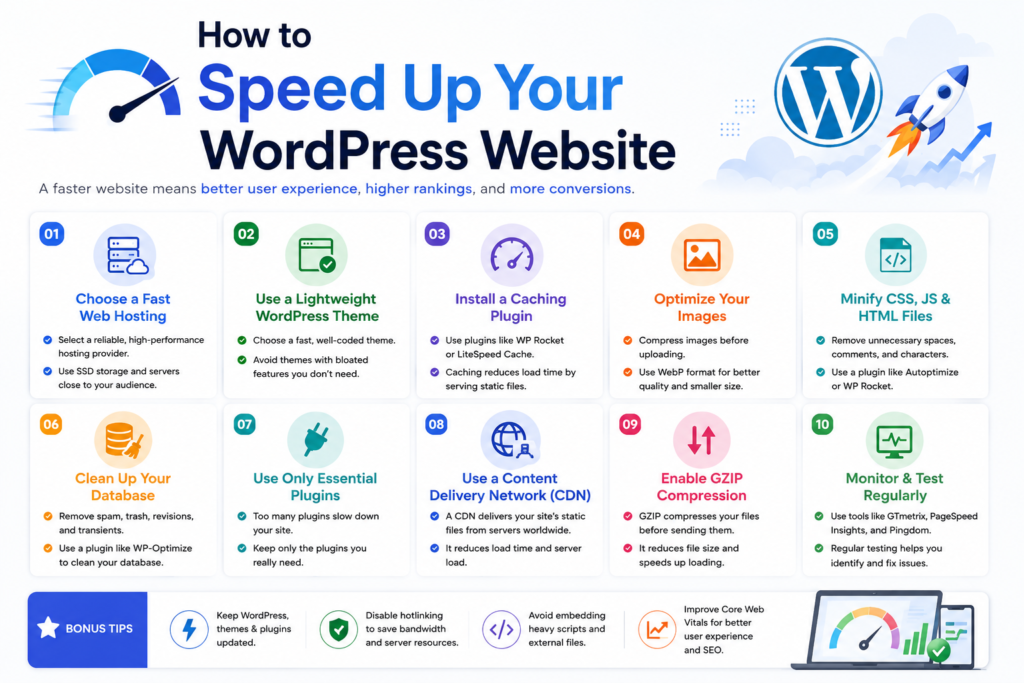
How to Speed Up Your WordPress Website in 2026
A slow WordPress website can frustrate visitors, reduce conversions, and make it harder for users to explore your content. Whether you run a blog, business website, or WooCommerce store, improving performance should be a priority.
The good news is that you don’t need to rebuild your entire website to make it faster. A few well-planned optimizations can make a significant difference.
This guide explains how to speed up your WordPress website using practical, beginner-friendly steps.
1. Test Your Website Speed First
Before changing anything, measure your current performance.
Use tools such as Google PageSpeed Insights, GTmetrix, or WebPageTest to identify issues and establish a baseline.
Pay attention to:
- Largest Contentful Paint (LCP): How quickly the main content appears.
- Interaction to Next Paint (INP): How responsive the page feels.
- Cumulative Layout Shift (CLS): How much the layout unexpectedly moves.
- Time to First Byte (TTFB): How quickly the server begins responding.
Test both mobile and desktop versions. Keep a record of your results so you can compare them after making improvements.
2. Choose Quality WordPress Hosting
Your hosting provider has a major impact on website performance.
Even the best caching plugin cannot fully compensate for an overloaded server or poorly configured hosting environment.
Look for hosting that offers:
- Modern PHP versions
- Fast SSD or NVMe storage
- Server-level caching
- Sufficient memory and CPU resources
- Reliable uptime
- Good technical support
If your website receives significant traffic, upgrading from a low-resource shared plan to a better-managed hosting environment may provide noticeable improvements.
3. Use a Lightweight WordPress Theme
A theme controls much of your website’s frontend structure. A poorly optimized theme can load excessive CSS, JavaScript, fonts, and visual effects.
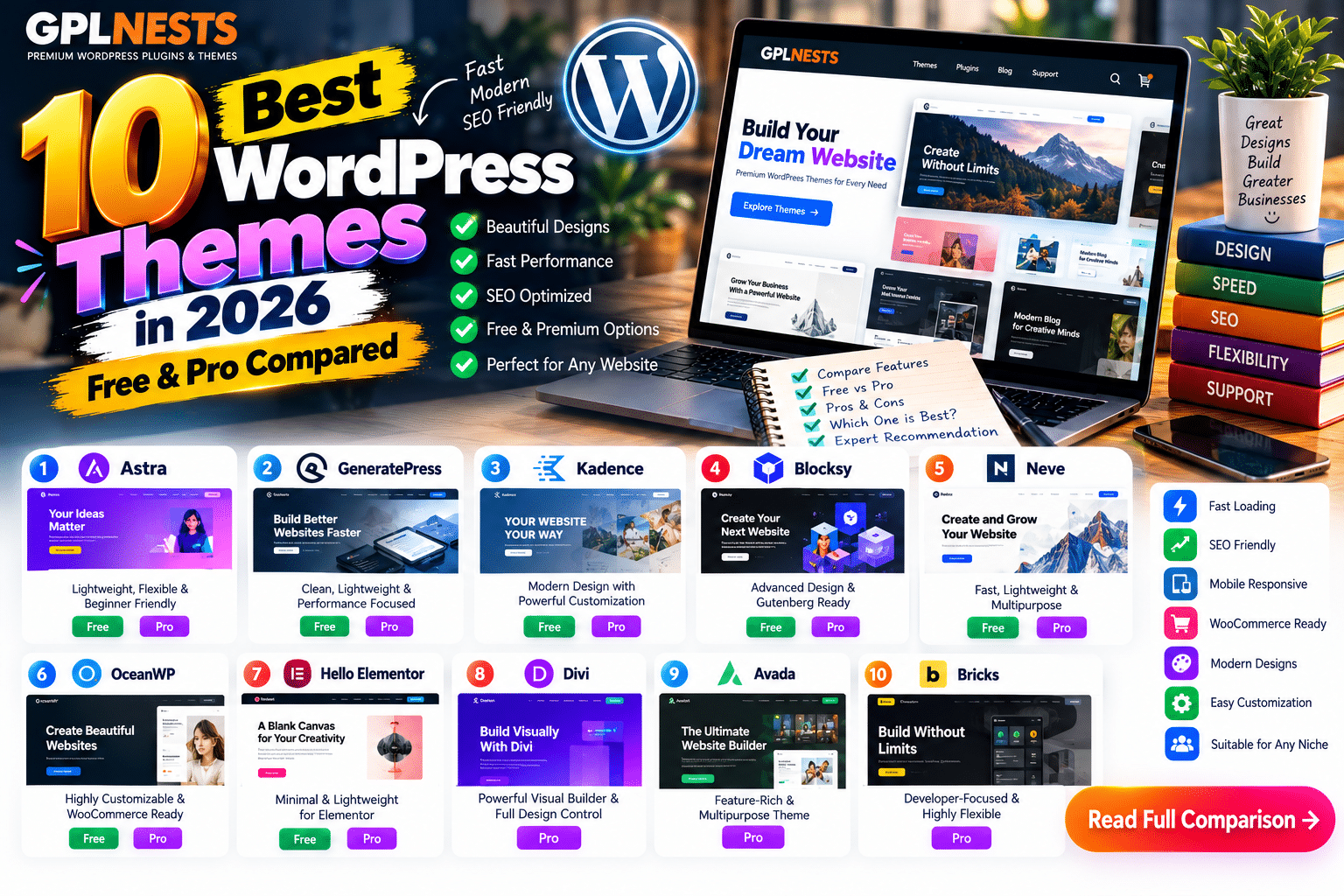
Lightweight themes such as Astra, GeneratePress, Kadence, and Blocksy are commonly chosen for performance-focused websites.
When selecting a theme, prioritize clean code, responsive design, compatibility with your plugins, and only the features you actually need.
4. Install a Caching Plugin
Caching is one of the most effective ways to improve WordPress performance.
Instead of generating every page from scratch for each visitor, caching stores a ready-to-serve version of the page.
Popular options include:
| Plugin | Best For |
|---|---|
| WP Rocket | Simple premium optimization |
| LiteSpeed Cache | LiteSpeed-compatible hosting |
| FlyingPress | Advanced performance optimization |
| WP-Optimize | Caching and database tools |
| W3 Total Cache | Users wanting detailed configuration |
Choose one primary caching solution. Running multiple full caching plugins can cause conflicts and duplicate optimization.
5. Optimize Your Images
Large images are one of the most common reasons WordPress pages load slowly.
Before uploading images, resize them to the dimensions your website actually needs. A 4000-pixel image is unnecessary if it only appears at 800 pixels wide.
Use modern formats such as WebP or AVIF when supported, and compress images without noticeably reducing quality.
Image optimization plugins such as Smush, ShortPixel, or Imagify can automate much of this process.
Also enable lazy loading for images that appear below the initial viewport.
6. Reduce Unnecessary Plugins
WordPress plugins are useful, but every plugin adds code and may introduce database queries, scripts, or background processes.
The number of plugins alone is not the problem. A single poorly optimized plugin can have a greater impact than several lightweight ones.
Review your installed plugins and remove those that are unused, duplicated, or unnecessary. Keep the remaining plugins updated and choose reputable developers.
7. Optimize CSS and JavaScript
CSS and JavaScript files can delay page rendering when they are too large or loaded unnecessarily.
Performance plugins can help by:
- Minifying CSS and JavaScript
- Removing unused CSS where supported
- Delaying non-essential JavaScript
- Deferring suitable scripts
- Reducing render-blocking resources
Apply these settings carefully. Aggressive optimization can break sliders, menus, forms, checkout pages, or Elementor widgets.
Always test your website after enabling advanced asset optimization.
8. Use a Content Delivery Network (CDN)
A CDN distributes static website files across servers in different geographic locations.
When a visitor accesses your website, assets can be delivered from a server closer to them, potentially reducing latency.
CDNs are particularly useful for websites with international audiences or large amounts of static content.
Popular services include Cloudflare and Bunny CDN. Some managed WordPress hosts also include CDN functionality.
9. Keep WordPress, Themes, and Plugins Updated
Updates often include performance improvements, compatibility fixes, and security patches.
Keep your WordPress core, theme, and plugins updated, but create a backup before major changes.
For important business websites, test updates on a staging environment before applying them to the live site.
10. Clean and Optimize Your Database
Over time, WordPress databases can accumulate unnecessary data such as old revisions, expired transients, spam comments, and unused plugin records.
Database optimization tools can help remove unnecessary records and improve database maintenance.
However, avoid deleting data you don’t understand. Always create a database backup before performing cleanup.
11. Limit Heavy Third-Party Scripts
External scripts can significantly affect performance.
Common examples include:
- Advertising networks
- Analytics tools
- Chat widgets
- Social media embeds
- Tracking pixels
- External video players
Only load scripts that provide real value. Where possible, delay non-essential scripts until after the main content has loaded or the visitor interacts with the page.
12. Optimize Fonts and Videos
Fonts and videos can add substantial weight to a page.
Use fewer font families and font weights, serve optimized font files, and avoid loading unnecessary icon libraries.
For videos, consider using a lightweight preview image instead of loading a full video player immediately. Hosting large video files directly on a basic WordPress server is generally not ideal.
13. Enable Object Caching When Appropriate
Object caching stores the results of repeated database queries, reducing the work WordPress needs to perform.
Persistent object caching solutions such as Redis can be particularly useful for dynamic websites, WooCommerce stores, and membership platforms.
Availability depends on your hosting provider. Ask your host whether persistent object caching is supported before installing additional tools.
14. Optimize WooCommerce Carefully
WooCommerce websites require special attention because cart, checkout, and account pages contain dynamic information.
Do not blindly cache pages that display personalized customer data.
Focus on optimizing product images, reducing unnecessary extensions, improving database performance, and ensuring cart and checkout exclusions are configured correctly.
Test the complete purchasing process after changing caching or JavaScript settings.
15. Monitor Performance Regularly
Website speed is not a one-time task.
New plugins, theme updates, advertising scripts, and uploaded images can gradually affect performance.
Test your most important pages regularly and compare results over time. Focus on real user experience rather than chasing a perfect PageSpeed score.
WordPress Speed Optimization Checklist
-
Test mobile and desktop performance
-
Choose quality hosting
-
Use a lightweight theme
-
Configure one caching solution
-
Compress and resize images
-
Enable lazy loading
-
Remove unnecessary plugins
-
Optimize CSS and JavaScript
-
Use a CDN when beneficial
-
Update WordPress and plugins
-
Clean the database safely
-
Reduce third-party scripts
-
Optimize fonts and videos
-
Configure object caching if supported
-
Test WooCommerce dynamic pages
Final Verdict
The best way to speed up WordPress is to improve the entire website stack rather than relying on one plugin.
Start with quality hosting, a lightweight theme, caching, and image optimization. Then address JavaScript, database performance, and third-party scripts based on your speed-test results.
A well-optimized website should feel fast, remain stable, and provide a smooth experience for visitors—not simply achieve a high score in a testing tool.
Frequently Asked Questions
What is the fastest way to speed up WordPress?
Start by enabling caching, optimizing large images, and checking your hosting performance. These changes often address the most common bottlenecks.
Which is the best WordPress cache plugin?
WP Rocket is a strong premium option, while LiteSpeed Cache is especially effective on compatible LiteSpeed hosting. The best choice depends on your server and requirements.
Do too many plugins slow down WordPress?
Not automatically. Plugin quality and functionality matter more than the total number, although unnecessary plugins should be removed.
Does a CDN improve WordPress speed?
A CDN can reduce latency and improve static asset delivery, particularly for visitors located far from your hosting server.
Is a 100 PageSpeed score necessary?
No. Focus on Core Web Vitals, real user experience, and stable functionality rather than sacrificing useful features to achieve a perfect score.