
Imagine spending months building your WordPress website, publishing articles, uploading products, and customizing every page—only to lose important data because of a failed update, server problem, or security incident.
It’s a situation no website owner wants to face.
Unfortunately, WordPress websites can experience unexpected problems even when they’re properly maintained.
A plugin update may break your website. A hosting issue could make files inaccessible. Malware might damage your database. Or a simple administrative mistake could delete important content.
That’s why having a reliable WordPress backup strategy is essential.
The good news is that you don’t necessarily need an expensive backup service to get started.
Several WordPress plugins provide free backup, scheduling, cloud storage, and restoration features. Premium solutions offer additional functionality such as incremental backups, real-time protection, advanced migration, and managed recovery.
In this guide, we’ll compare the 7 best WordPress backup plugins in 2026, including free and premium options for bloggers, business websites, Elementor users, WooCommerce stores, and WordPress developers.
We’ll also explain how to choose the right backup plugin and avoid common mistakes that could leave your website unprotected.
7 Best WordPress Backup Plugins: Quick Comparison
| Plugin | Best For | Free Version | Editorial Rating |
|---|---|---|---|
| UpdraftPlus | Best overall for most websites | Yes | 4.8/5 |
| Duplicator | Backups and migrations | Yes | 4.8/5 |
| BlogVault | Managed backups and WooCommerce | Limited trial | 4.7/5 |
| WPvivid Backup & Migration | Best free all-round toolkit | Yes | 4.7/5 |
| Jetpack VaultPress Backup | Real-time backup service | No ongoing free plan | 4.6/5 |
| Solid Backups – NextGen | Cloud-first backups | No | 4.5/5 |
| BackWPup | Flexible scheduled backups | Yes | 4.5/5 |
Ratings are editorial assessments based on documented features, ease of use, backup flexibility, restoration options, and suitability for common WordPress workflows. They are not independent reliability benchmarks.
What Should You Look for in a WordPress Backup Plugin?
Before comparing plugins, it’s important to understand what makes a backup solution useful.
Automatic Backups
A backup system should run regularly without requiring you to remember to press a button.
Full Website Backups
A complete WordPress backup typically includes:
- WordPress database
- Themes
- Plugins
- Media uploads
- Important configuration files
- Other necessary website files
Offsite Storage
Storing backups only on the same server as your website creates unnecessary risk.
If that server fails or becomes compromised, your backups may be affected too.
Easy Restoration
Creating a backup is only half the process.
You also need a practical way to restore your website.
Backup Retention
Keeping several restore points allows you to recover from problems that may have started days or weeks earlier.
WooCommerce Compatibility
Stores that receive frequent orders may need more frequent database backups or specialized order-preserving restoration.
With those requirements in mind, let’s compare the best options.
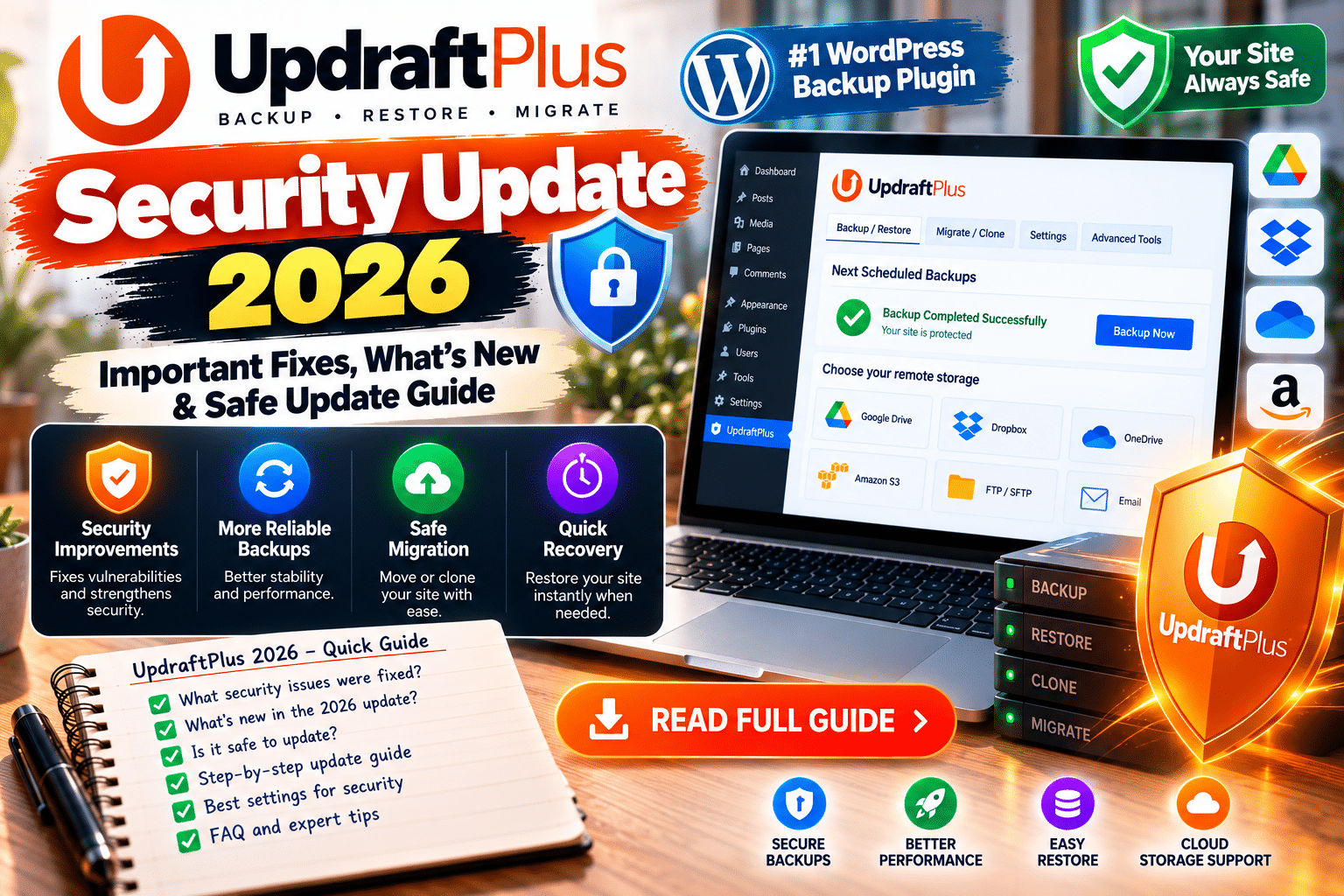
1. UpdraftPlus – Best Overall WordPress Backup Plugin
Editorial Rating: 4.8/5
UpdraftPlus is a well-established WordPress backup and restoration plugin.
Its combination of scheduled backups, remote storage, and accessible restore tools makes it suitable for a wide range of WordPress websites.
Key Features
- Manual backups
- Scheduled backups
- Database backups
- WordPress file backups
- Remote storage integrations
- Backup restoration
- Backup retention controls
- Premium incremental backups
- Premium migration functionality
- Additional premium storage options
Free vs Premium
UpdraftPlus Free
The free version supports manual and scheduled backups, common remote storage destinations, and restoration.
For a small blog or business website, these capabilities may be sufficient.
UpdraftPlus Premium
Premium functionality expands backup flexibility with features such as incremental backups, migration tools, additional storage destinations, and advanced backup options.
Pros
- Useful free version
- Scheduled backups
- Remote storage support
- Straightforward restoration
- Suitable for many WordPress websites
- Premium migration and incremental backup options
Cons
- Some advanced features require premium
- Large websites may need careful resource management
- Configuration depends on the chosen storage provider
- Scheduled backups should be monitored
Who Should Use UpdraftPlus?
UpdraftPlus is particularly suitable for bloggers, small businesses, portfolio websites, and general-purpose WordPress installations.
Verdict: Our best overall recommendation for users who want a balance of functionality, usability, and free backup options.
2. Duplicator – Best for WordPress Backups and Migration
Editorial Rating: 4.8/5
Duplicator is widely used for WordPress website backups and migrations.
It’s especially useful when you need to move a website between hosting providers, create a development copy, or restore a previous version.
What’s New in Duplicator 5.0?
Duplicator introduced major improvements to its free version in October 2026.
Duplicator Lite 5.0 includes:
- One-click backup restoration
- AES-256 backup encryption
- Optional Duplicator Cloud storage integration
- Background backup processing
- Resumable backup operations
- Improved archive handling
- Additional recovery options through connected cloud storage
These changes make Duplicator Lite more capable than older versions.
Key Features
- Full website backups
- Database and file archives
- WordPress migration
- One-click restoration
- Backup encryption
- Cloud storage integration
- Backup archive management
- Premium scheduled backups
- Premium advanced migration tools
- Premium staging and management functionality
Free vs Premium
Duplicator Lite
The free version provides manual backup creation, migration tools, encryption, and one-click restoration.
Optional Duplicator Cloud storage is available through a separate paid storage plan.
Duplicator Pro
Duplicator Pro adds automatic scheduled backups, broader storage integrations, and advanced website management features.
Pros
- Strong migration functionality
- Useful free backup features
- One-click restoration in Lite 5.0
- Backup encryption
- Cloud recovery options
- Good for developers and agencies
Cons
- Scheduled automatic backups require Pro
- Cloud storage has separate costs
- Large migrations require planning
- Restoring an old database may overwrite newer content
Who Should Use Duplicator?
Duplicator is particularly useful for freelancers, developers, agencies, and website owners who frequently migrate WordPress installations.
Verdict: An excellent choice when website migration and restoration are just as important as routine backups.
3. BlogVault – Best for Managed Backups and WooCommerce
Editorial Rating: 4.7/5
BlogVault is a managed WordPress backup service designed to simplify backup creation, storage, and restoration.
Unlike traditional plugins that rely heavily on your hosting server, BlogVault uses an external backup infrastructure.
This can be particularly valuable for business-critical websites.
Key Features
- Automated website backups
- Offsite backup storage
- Backup history
- Website restoration
- Staging functionality
- Incremental backup technology
- Website migration
- WooCommerce-specific backup capabilities
- Order-preserving restore options on eligible plans
WooCommerce Backup Protection
BlogVault offers specialized functionality for WooCommerce stores.
Its WooCommerce plan includes real-time order backup functionality.
However, real-time does not necessarily mean every change is transferred to offsite storage instantaneously.
BlogVault collects events at short intervals, so a small delay can exist.
Free vs Premium
BlogVault is primarily a paid managed backup service.
A trial may be available, but it should not be treated as an unrestricted free backup plan.
Premium plans provide different backup frequencies, retention periods, and functionality.
The specialized WooCommerce plan includes more advanced order protection.
Pros
- Managed offsite backups
- Reduced reliance on hosting resources
- Staging functionality
- Useful recovery tools
- WooCommerce-specific protection
- Suitable for business websites
Cons
- Primarily paid
- Advanced WooCommerce protection requires an eligible plan
- External service dependency
- More expensive than some self-managed options
Who Should Use BlogVault?
BlogVault is worth considering for WooCommerce stores, agencies, membership websites, and businesses where data loss could have significant consequences.
Verdict: A strong premium choice for websites that need managed backups and more sophisticated recovery options.
4. WPvivid Backup & Migration – Best Free Backup Toolkit
Editorial Rating: 4.7/5
WPvivid Backup & Migration offers an extensive set of backup and migration tools.
Its free version includes functionality that many website owners would otherwise expect to find only in premium software.
Key Features
- Full website backups
- Database-only backups
- File backups
- Scheduled backups
- Cloud storage integrations
- Website migration
- One-click restoration
- Basic backup retention
- Free staging functionality
- Premium incremental backups
- Premium advanced migration
- Premium rollback functionality
Free vs Premium
WPvivid Free
The free edition supports backups, basic scheduling, remote storage, migration, restoration, and basic staging.
Supported storage options include services such as Google Drive, Dropbox, and Amazon S3.
WPvivid Pro
Premium functionality adds incremental backups, advanced scheduling, selective backups, more sophisticated staging, and additional migration capabilities.
Pros
- Extensive free functionality
- Cloud storage options
- Scheduled backups
- Migration tools
- One-click restoration
- Staging functionality
- Premium incremental backup options
Cons
- Advanced features can feel complicated
- Incremental backups require Pro
- Large sites may need careful backup configuration
- Some staging features require premium
Who Should Use WPvivid?
WPvivid is particularly useful for bloggers, freelancers, small businesses, and WordPress administrators who want backups and migration in one toolkit.
Verdict: One of the strongest free backup solutions for users who want more than simple database exports.
5. Jetpack VaultPress Backup – Best for Real-Time WordPress Backups
Editorial Rating: 4.6/5
Jetpack VaultPress Backup is a managed backup solution from the Jetpack ecosystem.
It automatically backs up WordPress website data and provides cloud-based restoration functionality.
Its real-time event backup capabilities make it particularly relevant for websites with frequent changes.
Key Features
- Automated daily backups
- Real-time event backups
- Cloud storage
- Activity-based restore points
- One-click restoration
- Individual file restoration
- Backup downloads
- WooCommerce order protection
- Website recovery functionality
WooCommerce Features
Jetpack VaultPress Backup includes specialized handling for WooCommerce orders and products.
This can help protect transaction data when restoring a store to an earlier state.
However, store owners should still verify the exact restore behavior and data coverage for their configuration.
Free vs Premium
Jetpack VaultPress Backup is a paid service.
It is not an unrestricted free backup plugin.
The service handles backup scheduling automatically, rather than providing a fully customizable hourly or weekly schedule.
Pros
- Automated backups
- Real-time event protection
- Cloud storage
- Convenient restoration
- WooCommerce support
- Useful activity-based recovery
Cons
- Paid subscription
- Requires connection to Jetpack services
- Backup scheduling is not fully customizable
- Not necessary for every small website
Who Should Use Jetpack VaultPress Backup?
It’s suitable for frequently updated websites, content publishers, and WooCommerce stores that prefer managed backups.
Verdict: A convenient premium option for automated backup protection with WordPress-focused restoration tools.
6. Solid Backups – NextGen – Best Cloud-First Backup Service
Editorial Rating: 4.5/5
Solid Backups – NextGen is the newer cloud-first backup solution from SolidWP.
It replaces the traditional approach of running all backup operations directly through the website’s PHP environment with a more externally managed workflow.
Key Features
- Cloud-first backup management
- Daily incremental file backups
- Full database backups
- Offsite storage
- One-click restoration
- Centralized management
- Backup history
- Backup downloads
- Integration with Solid Central
How Does It Work?
Solid Backups – NextGen connects WordPress websites to SolidWP’s cloud infrastructure.
Backup operations are initiated and managed through the service.
This approach can reduce the amount of backup processing performed directly by the website’s hosting environment.
Free vs Premium
Solid Backups – NextGen is a paid backup service.
It should not be confused with a permanently free backup plugin.
Also, the older BackupBuddy product became Solid Backups – Legacy.
The NextGen service uses a different architecture and onboarding workflow.
Pros
- Cloud-first design
- Incremental file backups
- Centralized management
- Offsite storage
- One-click restoration
- Useful for managed websites
Cons
- Paid service
- Requires external service connectivity
- Initial setup may require SSH or SFTP access
- Hosting compatibility should be checked
- Different workflow from traditional backup plugins
Who Should Use Solid Backups?
Solid Backups – NextGen is worth considering for businesses and agencies that want cloud-managed WordPress backups.
Verdict: A practical option for users who prefer an externally managed backup workflow rather than a traditional self-hosted backup system.
7. BackWPup – Best for Flexible Scheduled Backups
Editorial Rating: 4.5/5
BackWPup is a WordPress backup plugin focused on scheduled backups, storage destinations, and backup job management.
It’s useful for website owners who want control over what gets backed up and where the resulting archives are stored.
Key Features
- Full WordPress file backups
- Database backups
- Scheduled backup jobs
- Multiple backup configurations
- Cloud storage integrations
- Backup archives
- Backup logs
- Manual restoration
- Premium one-click restoration
- Premium backup encryption
- Premium migration tools
Free vs Premium
BackWPup Free
The free edition supports scheduled backups, database and file backups, multiple backup jobs, and several remote storage destinations.
It also supports restoration from manually uploaded backup archives.
BackWPup Pro
Premium functionality includes more convenient restoration, additional storage destinations, backup encryption, migration tools, and a standalone restore application.
Pros
- Flexible backup scheduling
- Multiple backup jobs
- Free cloud storage options
- File and database backups
- Useful backup logs
- Advanced premium recovery tools
Cons
- Free restoration requires more manual steps
- Some storage integrations require Pro
- Backup jobs depend on proper scheduling
- Configuration can feel technical
Who Should Use BackWPup?
BackWPup is suitable for website owners who want configurable backup jobs and multiple storage options.
Verdict: A solid choice for users who prioritize scheduled backups and flexible backup configuration.
Free vs Premium WordPress Backup Plugins
The biggest difference between free and premium backup tools is often not whether they can create backups.
It’s how frequently they can run, where backups can be stored, and how easily the website can be restored.
| Feature | Free Plugins | Premium Solutions |
|---|---|---|
| Manual backups | Common | Included |
| Scheduled backups | Available in several | Common |
| Remote storage | Often available | Broader options |
| One-click restore | Available in selected plugins | Common |
| Incremental backups | Often limited | More widely available |
| Real-time backups | Uncommon | Selected services |
| Advanced migration | Limited or available | More extensive |
| Staging | Available in selected tools | More advanced |
| Priority support | Usually limited | Often included |
| Managed offsite storage | Usually separate | Available in selected services |
Important: These are general differences, not universal rules. For example, Duplicator Lite 5.0 now offers one-click restoration and encryption, while WPvivid Free includes basic staging and cloud storage functionality.
Which WordPress Backup Plugin Is Best?
The right choice depends on the type of website you operate.
Best Overall: UpdraftPlus
A strong balance of free backup functionality, remote storage, and restoration.
Best for Migration: Duplicator
Particularly useful for moving WordPress websites and creating recoverable site packages.
Best for WooCommerce: BlogVault
Its specialized WooCommerce backup plan offers order-focused protection and restore options.
Best Free Toolkit: WPvivid
Offers backups, scheduling, cloud storage, migration, restoration, and basic staging.
Best Managed Real-Time Backup: Jetpack VaultPress Backup
Suitable for frequently changing websites that need automated cloud backup services.
Best Cloud-First Service: Solid Backups – NextGen
Useful for centralized, externally managed WordPress backups.
Best for Flexible Scheduling: BackWPup
Good for creating multiple backup jobs with different schedules and storage configurations.
Best WordPress Backup Plugin for WooCommerce
WooCommerce stores need a more careful backup strategy than websites that rarely change.
Imagine a store receiving 50 orders every day.
If you restore a backup from yesterday without preserving newer orders, you could lose important transaction records.
This is why backup frequency and restore behavior matter.
Recommended WooCommerce Backup Features
Look for:
- Frequent database backups
- Offsite storage
- Reliable restore points
- Order-preserving recovery where supported
- Backup monitoring
- Staging functionality
- Clear retention policies
BlogVault and Jetpack VaultPress Backup offer specialized WooCommerce functionality.
However, always check the exact plan and configuration.
No backup service should be assumed to preserve every possible custom WooCommerce extension record automatically.
Best Backup Plugin for Elementor Websites
Elementor websites often include:
- Custom templates
- Headers and footers
- Theme Builder layouts
- Forms
- Popup designs
- Global styles
- Third-party addons
A complete Elementor backup should include the database and all necessary files.
This is important because Elementor templates and settings may be stored in WordPress database records.
For a typical Elementor website, UpdraftPlus, Duplicator, or WPvivid can be suitable options.
Before major Elementor updates, create a fresh backup and test the update on staging.
How Often Should You Back Up WordPress?
Backup frequency depends on how often your website changes.
| Website Type | Suggested Starting Frequency |
|---|---|
| Small static website | Weekly and before changes |
| Regularly updated blog | Daily |
| Business website with active forms | Daily or more frequently |
| Busy WooCommerce store | Frequent or event-based backups |
| Membership website | Frequent database backups |
| Development website | Before major changes |
These are planning recommendations rather than fixed rules.
For business-critical websites, decide how much data you can afford to lose.
This is called your Recovery Point Objective (RPO).
For example, if losing more than one hour of orders is unacceptable, a once-daily backup strategy is insufficient.
Also consider your Recovery Time Objective (RTO)—how quickly your website needs to be operational again.
Where Should You Store WordPress Backups?
Avoid relying exclusively on backups stored on your live hosting server.
A practical backup strategy may use:
- Cloud storage
- A separate hosting account
- A managed backup provider
- Secure local storage
- Multiple independent locations
A useful principle is the 3-2-1 backup strategy:
3 copies of important data
2 different storage types or systems
1 copy stored offsite
For especially important websites, immutable or offline copies can provide additional protection against ransomware and accidental deletion.
How to Back Up a WordPress Website
The exact interface depends on the plugin, but the general process is similar.
Step 1: Install a Backup Plugin
Go to:
WordPress Dashboard → Plugins → Add New Plugin
Search for the selected plugin and verify its developer.
Step 2: Configure Backup Storage
Choose an appropriate destination.
Remote storage is preferable to relying exclusively on your website’s server.
Step 3: Select Backup Content
Make sure the backup includes the database and required website files.
Step 4: Configure Scheduling
Choose a frequency appropriate for your website.
Step 5: Create Your First Backup
Run an initial backup manually.
Step 6: Verify Completion
Check the logs and confirm that the archive exists in the selected destination.
Step 7: Test Restoration
Restore a backup to a staging or isolated environment.
This is the most important verification step.
A backup that cannot be restored is not a dependable recovery solution.
How to Restore a WordPress Backup Safely
Restoration can overwrite current website data.
Before restoring:
- Identify the problem.
- Confirm which restore point is appropriate.
- Preserve any newer data that must not be lost.
- Verify the backup archive.
- Use staging where practical.
- Restore the website.
- Test important pages and functionality.
- Review security and software updates.
For WooCommerce stores, pay special attention to orders created after the selected restore point.
Do WordPress Backup Plugins Slow Down Websites?
Some backup plugins can consume server resources while creating archives or exporting databases.
The impact depends on:
- Website size
- Database size
- Hosting resources
- Backup frequency
- Compression settings
- Remote storage uploads
- Backup architecture
To reduce performance problems:
- Schedule intensive backups during quieter periods
- Use incremental backups when appropriate
- Avoid retaining excessive archives on the live server
- Monitor disk space
- Review backup logs
- Consider externally managed backup services for demanding websites
Cloud-managed backups may reduce local processing, but actual performance depends on the service and hosting environment.
Common WordPress Backup Mistakes
1. Keeping Backups Only on the Website Server
A server failure or compromise can affect both the live website and its backups.
2. Never Testing Restoration
A completed backup job doesn’t guarantee that the archive is usable.
3. Forgetting the Database
Files alone may not contain posts, settings, orders, or other important data.
4. Using an Inadequate Backup Schedule
A busy store may lose important information if backups are too infrequent.
5. Ignoring Failed Backup Notifications
A scheduled job may stop working because of storage limits, authentication issues, or server restrictions.
6. Keeping Too Few Restore Points
If malware or data corruption goes unnoticed, the newest backup may already contain the problem.
7. Storing Unencrypted Sensitive Data Carelessly
Backups can contain customer records, account information, and other sensitive information.
Protect backup access and use encryption where appropriate.
8. Confusing Migration With Ongoing Backup Protection
A migration archive is useful, but it doesn’t automatically provide continuous protection.
WordPress Backup Checklist for 2026
-
Choose a suitable backup plugin
-
Back up WordPress files and database
-
Configure automatic scheduling
-
Use secure offsite storage
-
Keep multiple restore points
-
Enable backup failure notifications
-
Protect storage account credentials
-
Test restoration on staging
-
Verify WooCommerce order handling
-
Create backups before major updates
-
Review storage retention
-
Document your recovery procedure
Final Verdict
The best WordPress backup plugin in 2026 depends on your website’s size, update frequency, and recovery requirements.
UpdraftPlus is our best overall choice for most WordPress websites.
Duplicator is excellent for migrations and has become more capable with its October 2026 Lite 5.0 update.
BlogVault stands out for managed backups and specialized WooCommerce protection.
WPvivid offers one of the most attractive free feature collections.
Jetpack VaultPress Backup provides managed real-time event backup functionality.
Solid Backups – NextGen is a cloud-first alternative.
And BackWPup is a practical option for configurable scheduled backups.
Whatever you choose, remember one essential rule:
A backup is only valuable when you can successfully restore your website from it.
Set up automatic backups, store copies away from your live server, and test restoration regularly.
Frequently Asked Questions
What is the best WordPress backup plugin in 2026?
UpdraftPlus is a strong general-purpose choice. Duplicator is excellent for migration, WPvivid offers extensive free features, and BlogVault is worth considering for managed WooCommerce backups.
Is UpdraftPlus free?
Yes. UpdraftPlus has a free version supporting manual and scheduled backups, remote storage, and restoration. Advanced features are available in premium editions.
Which WordPress backup plugin is best for free?
WPvivid, UpdraftPlus, Duplicator Lite, and BackWPup are all useful free options. The best choice depends on whether you prioritize scheduling, migration, restoration, or cloud storage.
Can I back up WordPress automatically?
Yes. Plugins such as UpdraftPlus, WPvivid, and BackWPup support scheduled backups in their free editions. Duplicator Pro provides automatic scheduled backups.
Which backup plugin is best for WooCommerce?
BlogVault and Jetpack VaultPress Backup offer specialized WooCommerce backup and restoration functionality. Verify current plan features and order preservation before choosing.
Do I need a backup plugin if my hosting company provides backups?
A separate backup system can provide additional protection, independent storage, and greater recovery flexibility. Review your hosting provider’s retention and restoration policies before relying on them exclusively.
Can I restore WordPress without accessing wp-admin?
Some backup solutions support recovery through external dashboards, standalone restore tools, or manual server access. Availability depends on the plugin and plan.
What is an incremental WordPress backup?
An incremental backup captures data that has changed since a previous backup rather than copying everything each time. This can reduce backup size and processing requirements.
How often should I back up my WordPress website?
A small blog may need daily backups, while a busy WooCommerce store may require more frequent protection. Choose a schedule based on how much data loss your business can tolerate.
Can a backup plugin protect against hackers?
Backups help with recovery, but they do not prevent attacks. Use security updates, strong authentication, and appropriate security monitoring alongside your backup strategy.
Does a backup include WordPress plugins and themes?
A complete website backup should include required plugins, themes, uploads, and database records. Confirm the selected backup configuration before relying on it.
Are WordPress backup plugins safe?
Established, actively maintained backup plugins can be useful, but backup archives must be protected. Use trusted software, secure storage, and regular restore testing.