
BookingPress Location Addon extends the BookingPress appointment booking plugin with tools for managing multiple business locations from one WordPress website. It allows businesses to organize their branches, assign services to specific locations, and configure different working hours and schedules for each branch.
Customers can select their preferred location during the booking process, helping them choose where they want to receive a service before completing their appointment. This makes the addon particularly useful for businesses that operate across several offices, clinics, salons, or service centers.
Whether you manage a beauty salon, spa, wellness center, consulting business, or multi-branch service company, BookingPress Location Addon helps bring location-based appointment scheduling into one centralized booking system.
What You’re Getting
- Multiple business location management within BookingPress.
- Custom location details, including names, addresses, phone numbers, images, and descriptions.
- Service assignments for individual locations.
- Location-specific working hours and special days.
- Staff scheduling based on business locations.
- A location selection step in the customer booking form.
- Integration with supported BookingPress booking workflows.
Key Features
- Multiple Location Management – Create and manage different business branches from the BookingPress dashboard.
- Location Details – Add a name, address, contact number, image, and description for each location.
- Customer Location Selection – Let customers choose their preferred branch during the appointment booking process.
- Service Assignment by Location – Specify which services are available at each branch so customers can book suitable appointments.
- Location-Specific Working Hours – Configure service availability according to the working schedule of each location.
- Special Days Management – Set different schedules for holidays, special dates, and other exceptions where supported.
- Staff Scheduling by Location – Configure staff working hours and special days separately for different branches.
- Multi-Location Staff Support – Allow staff members to serve at multiple locations when the relevant BookingPress setting is enabled.
- Flexible Booking Form Placement – Rearrange the location selection step within the booking form to suit your preferred customer journey.
- Service and Staff Availability – Present services and staff according to the selected location and configured schedules.
- Centralized Administration – Manage location information and scheduling settings within the existing BookingPress dashboard.
- BookingPress Cart Addon Compatibility – Work with the supported cart booking flow so services and staff can reflect the previously selected location.
- Website Timezone Integration – Locations inherit the timezone configured in your WordPress website settings.
- Location-Based Appointment Organization – Keep branch-specific service availability and staff schedules better organized within your booking workflow.
Manage Multiple Branches from One Dashboard
Operating several locations can make appointment scheduling more complicated. Each branch may offer different services, have different working hours, or employ a different team.
BookingPress Location Addon helps organize these differences within one WordPress booking system. You can create individual location profiles, assign services to each branch, and maintain the relevant scheduling information without creating a separate booking website for every location.
This setup is useful for businesses that want a consistent online booking experience while maintaining control over their individual branches.
Give Customers More Control Over Appointment Booking
Customers often prefer to book at a branch that is convenient for their home, workplace, or daily schedule. With a dedicated location selection step, they can choose their preferred branch as part of the booking process.
Once a location is selected, the booking workflow can present services and staff according to the availability configured for that branch. This helps customers make more informed choices before confirming an appointment.
You can also adjust the position of the location selection step in the booking form to fit your website’s preferred booking sequence.
Configure Services and Staff for Each Location
Not every branch offers the same services, and staff members may work at different locations on different days. The Location Addon lets you assign available services to specific branches and configure service schedules accordingly.
You can also manage staff working hours and special days by location. If employees work across multiple branches, enable the appropriate multi-location staff setting in BookingPress before configuring their schedules.
These controls are especially useful for salons, spas, clinics, and service businesses where staff availability and service offerings vary between locations.
Who Should Use BookingPress Location Addon?
This addon can be useful for:
- Salons and beauty studios operating across multiple branches.
- Spas and wellness centers managing appointments at different facilities.
- Clinics and healthcare service providers organizing branch-specific schedules.
- Consulting businesses accepting appointments at multiple offices.
- Fitness and wellness businesses scheduling services across different centers.
- Agencies and developers building multi-location booking websites for clients.
- Growing service businesses expanding their booking system as new branches open.
Requirements and Compatibility
BookingPress Location Addon is an extension, not a standalone booking plugin. You need a compatible BookingPress installation to manage locations and enable location-based appointment scheduling.
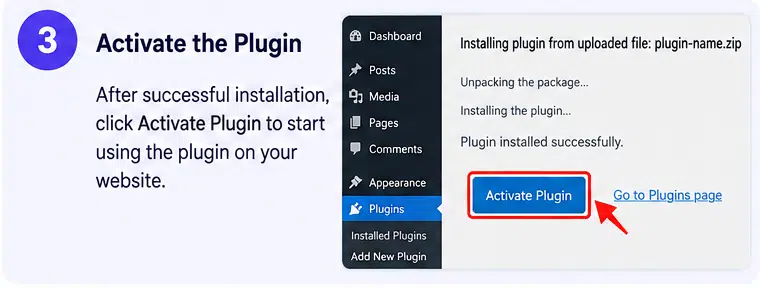
After installing and activating the addon, navigate to the BookingPress location management area to create your branches, enter their details, and assign available services. Configure service and staff schedules for each location before making the booking form available to customers.
If you use the BookingPress Cart Addon or other booking extensions, test the complete customer booking flow to confirm that location, service, staff, and scheduling information behave as expected. Also verify your WordPress timezone, as locations inherit the website’s configured timezone.
Check the current BookingPress plan, addon access, and version compatibility before installation, especially if you rely on premium features or third-party integrations.
Simplify Multi-Location Scheduling with BookingPress Location Addon
BookingPress Location Addon helps businesses manage multiple branches, organize service availability, and configure staff schedules within one WordPress appointment booking system. Its location selection step gives customers a clearer way to choose where their appointment will take place.
If your business operates from more than one physical location and you already use BookingPress, this addon can help make appointment management more organized for both your team and your customers.