
WooCommerce Edit Order by Customer is an order-management extension by Addify that allows customers to make permitted changes to their existing orders directly from their My Account page. Instead of contacting store support whenever they need to correct an address, change a product selection, or update a payment or shipping method, customers can edit selected order details themselves.
Store administrators stay in control of the process. You can decide which customer roles can edit orders, which order statuses allow changes, and which specific fields are available for editing. When a customer updates an order, the store administrator receives an email notification with the revised order details, and the order is automatically moved to On hold for review.
This is particularly useful for B2B stores, wholesale businesses, and stores where customers often need to make adjustments before completing payment.
What You’re Getting
- Customer-facing order editing from the WooCommerce My Account area
- Controls for editing orders according to user roles and order statuses
- Editable billing and shipping address fields
- Product editing controls for supported order statuses
- Options to allow or restrict specific products
- Customer access to selected payment methods
- Customer access to selected shipping methods
- Automatic email notifications when customers edit orders
- An administrator review process after an order is changed
Key Features
1. Allow Customers to Edit Their Orders
Give customers the ability to update eligible orders without having to contact your support team. Once enabled, an Edit Order button appears in the orders section of their My Account page.
2. Control Editing by Order Status
Choose when customers are allowed to make changes. You can configure editing permissions around the current order status, helping prevent unwanted modifications at later stages of order processing.
3. Set Permissions by User Role
Control which customer roles can access order-editing functionality. This is useful for stores that serve different customer groups, such as wholesale buyers, retail customers, and business accounts.
4. Edit Billing Addresses
Allow customers to correct their billing information when an order is eligible for editing. You can make all billing fields editable or select only the fields customers are permitted to change.
5. Edit Shipping Addresses
Let customers update delivery information before an order moves further through fulfilment. You can control individual shipping-address fields and restrict changes to details such as city, country, or postcode where necessary.
6. Add or Remove Products
When product editing is enabled, customers can use the available product-editing interface to remove existing products and add new ones through the Add Product popup.
7. Restrict Which Products Can Be Edited
Choose whether all products or only selected products can be edited. Product editing is designed for orders with supported statuses, specifically Pending payment and On hold.
8. Allow Payment Method Changes
Give customers the option to select from the payment methods you permit for eligible orders. This can help when a customer needs to use a different available payment option before completing payment.
9. Allow Shipping Method Changes
Configure which shipping methods customers can select when editing an eligible order. This gives customers more flexibility while allowing the store owner to control the available delivery options.
10. Configure Field-Level Editing
You do not have to make an entire order editable. Choose the specific billing, shipping, product, payment, and shipping-method settings that match your store’s order-management workflow.
11. Automatic Administrator Email Notifications
Receive an email when a customer changes an order. The notification includes the updated order details, helping administrators review what has changed without having to monitor every customer account.
12. Move Edited Orders to On Hold
After a customer edits an order, the extension automatically moves it to On hold. The administrator can review the updated information and move the order back to Pending payment or another appropriate status.
13. Support B2B Order Workflows
Businesses that receive large orders from wholesale or corporate customers can use customer-led editing to reduce unnecessary support requests. Customers can make permitted adjustments before payment, while administrators retain control over final processing.
How It Works
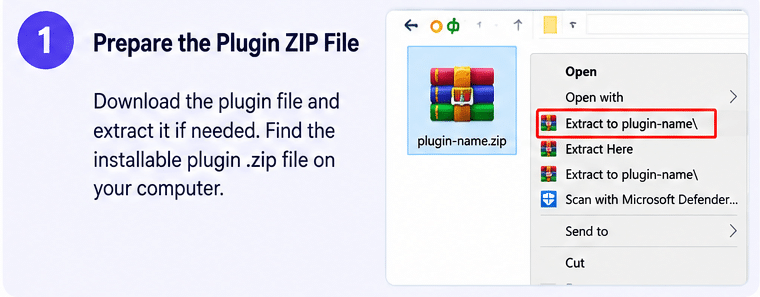
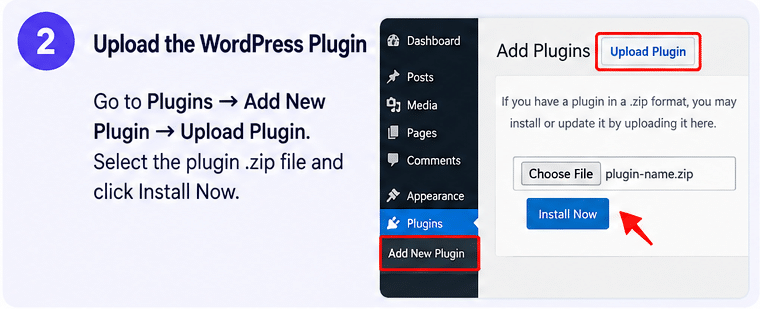
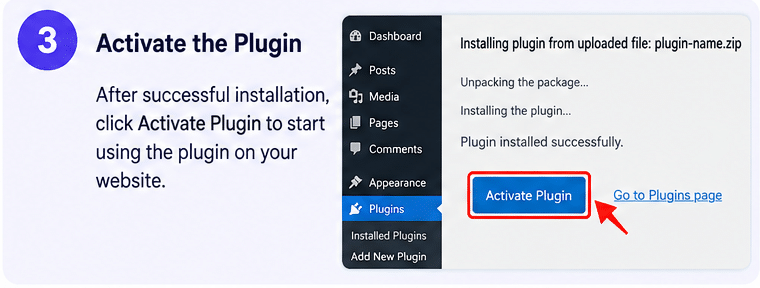
- Install and configure the extension in your WooCommerce store.
- Choose the customer roles that should have editing access.
- Configure the order statuses under which editing is permitted.
- Select which billing, shipping, product, payment, and shipping fields customers can change.
- Customers open My Account and select an eligible order.
- They use the Edit Order option to make the permitted changes.
- The store administrator receives an email notification, and the edited order moves to On hold for review.
Benefits for WooCommerce Store Owners
Reduce Routine Support Requests
Customers can correct eligible order details themselves instead of sending emails or contacting support for every small adjustment.
Give Customers More Control
A self-service editing option makes it easier for customers to correct mistakes and update their order information before the store processes it.
Maintain Administrative Oversight
Role-based permissions, order-status restrictions, and automatic notifications help store owners maintain control over customer changes.
Improve Wholesale Order Management
B2B customers who place larger orders can make permitted changes before payment, reducing back-and-forth communication with the sales team.
Who Should Use WooCommerce Edit Order by Customer?
This extension can be useful for:
- B2B and wholesale WooCommerce stores
- Businesses that accept large customer orders
- Stores where customers frequently correct billing or shipping details
- Online retailers that allow changes before payment
- Stores that want to reduce manual order-editing requests
- WooCommerce businesses that need controlled customer self-service
Compatibility and Setup Notes
- Platform: WordPress with WooCommerce
- Developer: Addify
- Customer interface: WooCommerce My Account page
- Permissions: Configurable by user role and order status
- Order review: Edited orders are automatically moved to On hold
- Product editing: Available for Pending payment and On hold orders
- Requirements: The official listing specifies WordPress 6.5 or later, WooCommerce 4.0 or later, and PHP 7.4 or later. Check the current release requirements before installation.
Important limitation: This extension is intended for controlled edits to eligible orders, particularly before payment. Product editing is limited to Pending payment and On hold statuses. Do not assume customers can freely edit paid orders in Processing status or completed orders. Test the configured permissions and order-status workflow before enabling customer editing on a live store.
Make WooCommerce Order Management More Flexible
WooCommerce Edit Order by Customer gives customers a convenient way to update eligible orders while keeping store administrators involved in the review process. With configurable permissions, address editing, product changes, shipping and payment method controls, and automatic notifications, it can help reduce routine support work and make pre-payment order management more efficient.